 Appointify AI
Appointify AI › Blog › How do I embed an AI web call widget on WordPress, Squarespace, or Shopify?
← All articlesHow do I embed an AI web call widget on WordPress, Squarespace, or Shopify?
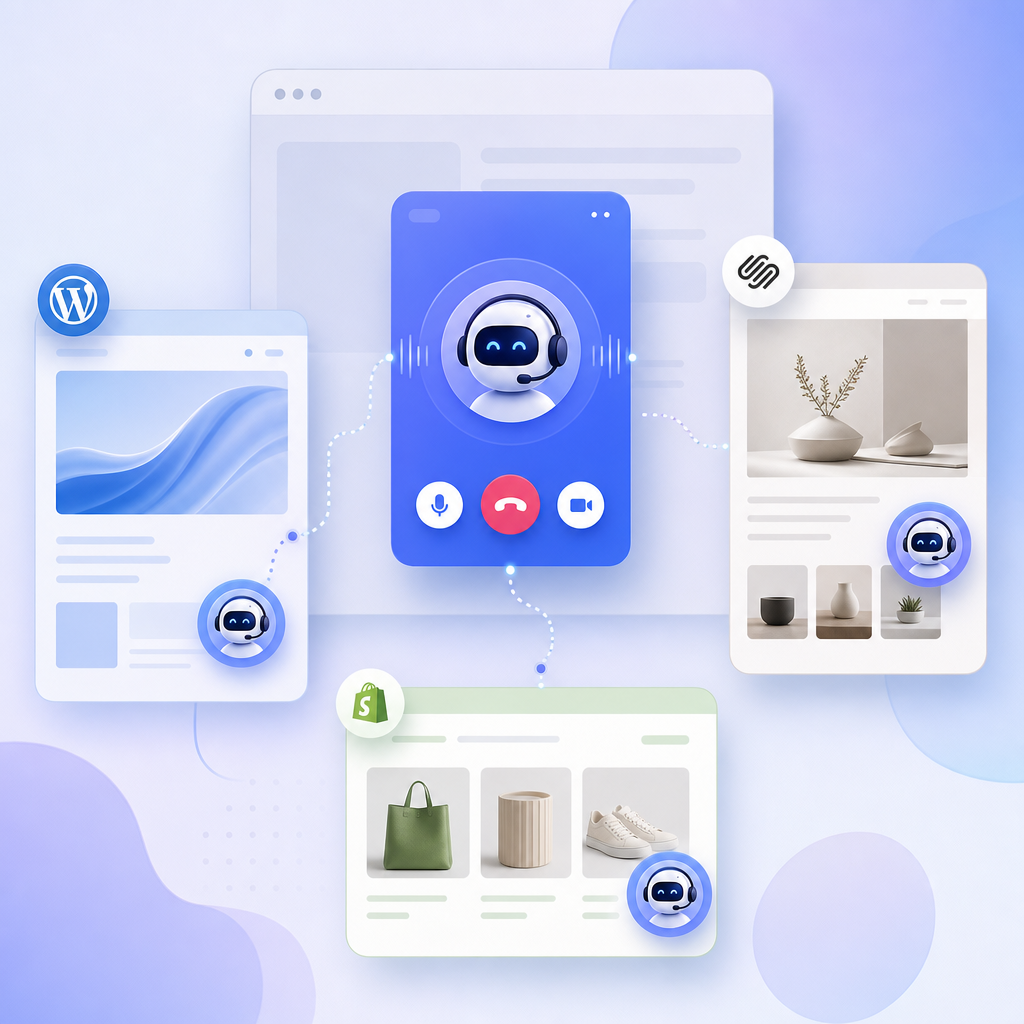
Embedding an AI web call widget on WordPress, Squarespace, or Shopify usually means adding either a single script tag, an iframe, or a platform-native app block. The simplest pattern is pasting the vendor’s code before </body> or into a custom code area, then testing microphone permissions, mobile layout, and page coverage.
How do I embed an AI web call widget on WordPress, Squarespace, or Shopify?
The core process is the same on all three platforms: get the widget code from your provider, add it to a site-wide code area or page block, publish, and test. What changes is where each platform lets you place that code and whether it supports app-style installation.
Most AI chat or voice-call widgets are delivered in one of three ways:
1. Script embed: a small JavaScript snippet added site-wide, often before </body>.
2. Iframe embed: a block of HTML that displays the widget in an embedded frame.
3. Platform-native extension: an app block, theme extension, or plugin-based insertion.
Comparable tools follow this pattern. Questme.ai, Qply, DropWidget, and MVPLab all describe single-script installation. Free.ai documents iframe embeds. MediaSFU documents WordPress shortcode options and Shopify app-extension support.
If you want a voice-first conversational flow for lead capture and appointment booking, Appointify AI fits the same general deployment model: obtain the web widget code from the platform, place it in the correct area for your CMS, and verify that calendars, lead routing, and meeting flows work after publish.
What are the main ways AI web call widgets are embedded?
The three common methods are script embeds, iframe embeds, and native app or plugin installs. Script embeds are usually the fastest because they can load site-wide from one placement.
Does a script embed work best for most websites?
Yes. A script embed is usually the easiest option when the provider gives one line of code and your platform allows custom code insertion.
Several vendors explicitly use this approach. MVPLab provides a widget.js script with a site ID and says it loads asynchronously. Qply and Questme.ai also document adding a snippet before </body>. DropWidget uses a single script tag for WordPress, Squarespace, Shopify, and raw HTML.
Script installs are useful when you want:
- one deployment across the whole site
- easier updates from the vendor side
- floating call or chat bubbles
- less manual placement per page
When should I use an iframe instead?
Use an iframe when the provider supplies one, or when you want the widget placed inside a specific section of a page. Iframes are common for embedded scheduling and contained chat layouts.
Free.ai documents iframe-based embedding for WordPress, Shopify, and Squarespace. Chipp also supports iframe embeds and notes permission allowances for some capabilities, including microphone; clipboard-write; screen-wake-lock.
An iframe can be easier when you need a fixed in-page module instead of a floating launcher.
When is a plugin or app block better?
A native plugin or app block is better when the platform restricts code access or when non-technical users need visual placement controls. It is also useful for stores that manage layout in a theme editor.
MediaSFU documents WordPress shortcode variants and Shopify Theme App Extensions and App Blocks. That matters because Shopify merchants often prefer app-managed placement rather than editing theme files directly.
How do I add an AI web call widget to WordPress?
WordPress usually supports all three methods: script, iframe, or shortcode/plugin. The easiest path depends on whether you want the widget on every page or only selected pages.
For site-wide placement, add the provider’s script in a global code area or with a header/footer code plugin if your theme does not expose a built-in field. Many vendors instruct users to place the code near the end of the page, often before </body>.
For page-specific placement, use:
- a Custom HTML block for script or iframe code
- a vendor shortcode if one exists
- a plugin/module supplied by the provider
MediaSFU specifically mentions WordPress shortcode variants. Free.ai documents use in a WordPress custom HTML block. MVPLab and Questme.ai describe simple script insertion models that also apply to WordPress.
Best practice for WordPress:
- Put floating widgets site-wide.
- Put in-content booking widgets on landing pages.
- Test caching and optimization plugins after installation.
- Confirm the microphone prompt appears on supported browsers if the widget is voice-enabled.
How do I add an AI web call widget to Squarespace?
Squarespace usually uses a Code Block for page-level embeds or code injection for site-wide embeds. The key limitation is where your plan and template allow custom code.
For page-level embeds, paste the widget code into a Code Block. Free.ai explicitly documents this method for Squarespace.
For site-wide floating widgets, providers commonly instruct users to paste the script into global code injection so it appears across the site. Questme.ai, Qply, and DropWidget all describe a single script pattern that fits this model.
Best practice for Squarespace:
- Use global injection for a floating voice/chat launcher.
- Use a Code Block for embedded booking sections on high-intent pages.
- Preview on mobile before publishing, because floating buttons can overlap other sticky elements.
How do I add an AI web call widget to Shopify?
Shopify supports script embeds, theme edits, app blocks, and theme app extensions. The cleanest method is usually the one your widget vendor officially supports.
MediaSFU specifically notes Shopify support through Theme App Extensions and App Blocks. That is often the safest route because merchants can enable, disable, and position the widget inside the theme editor.
If the provider gives a script snippet, merchants may place it in theme code or a supported custom code area. Questme.ai, MVPLab, Qply, and DropWidget all describe cross-platform script installation that includes Shopify. Free.ai documents iframe use in a Shopify Liquid section.
Best practice for Shopify:
- Prefer app blocks or official app embeds when available.
- Put lead-capture widgets on product, collection, and contact pages only if they do not obstruct add-to-cart actions.
- Test checkout-adjacent pages carefully so the widget does not interfere with conversion-critical UI.
Where should I place the widget code?
Place the code site-wide if the widget is a floating launcher, and place it on specific pages if the widget is meant to appear inline. The right location depends on user intent and layout.
Good site-wide placements include:
- global footer code area
- code injection field
- theme app embed
- plugin-managed footer script
Good page-level placements include:
- homepage hero support section
- contact page
- pricing page
- service landing pages
- product detail pages with high purchase friction
If your goal is AI appointment booking or conversational AI lead capture, prioritize pages where visitors are ready to ask questions, request demos, or schedule. That is where a tool like Appointify AI is most relevant: it can qualify leads and route them into a calendar-driven booking flow instead of acting as a generic support widget.
What should I test after the widget is live?
Test visibility, permissions, responsiveness, and lead flow before considering the install complete. A widget that loads is not necessarily a widget that converts.
Check these items:
- Does the widget appear on all intended pages?
- Does it open correctly on mobile and desktop?
- Does voice input request microphone permission properly?
- Does it conflict with cookie banners, sticky headers, or chat tools?
- Does it submit lead data and book meetings correctly?
- Does it load asynchronously or otherwise avoid blocking the page?
Asynchronous loading is a documented benefit in several comparable tools, including MVPLab and Qply. If you use an iframe-based setup, test the provider’s required permissions. Chipp notes that some iframe deployments require microphone; clipboard-write; screen-wake-lock.
Which embed method is best for a voice-first AI appointment booking widget?
A site-wide script or native app embed is usually best for a floating voice-first booking widget. An iframe is often better for a fixed booking module inside a landing page.
Choose script or app embed when you want:
- a persistent launcher across the site
- minimal setup work
- centralized updates
- voice or text access from any page
Choose iframe when you want:
- a contained booking experience in-page
- a section-level layout
- tighter control over where the assistant appears
For a voice AI chatbot for websites or AI meeting scheduler for websites, the best option is usually the one your provider officially supports on your platform. That reduces maintenance and makes troubleshooting easier.
FAQ
Can I install a web call widget without editing code?
A web call widget can often be installed without manual coding if the provider offers a WordPress plugin, Shopify app block, or copy-paste code field. The practical requirement is still adding a snippet somewhere, but many platforms expose that through visual settings rather than file editing.
Is a script tag or iframe better for an AI voice widget?
A script tag is usually better for a floating, site-wide AI voice widget because it is easier to deploy across every page and often updates centrally. An iframe is better when you want a fixed, in-page assistant or booking box with tighter layout control.
Why is my AI widget not showing on every page?
An AI widget usually fails to appear site-wide because the code was added to a single page block instead of a global area, the theme lacks the required app embed, or another optimization setting is delaying or stripping the script. Check placement, publish state, and script exclusions.
Do I need special settings for microphone access?
Yes. Voice-enabled widgets need the browser to allow microphone access, and iframe-based implementations may require explicit permissions. If voice is not working, test browser prompts, secure HTTPS delivery, and any iframe permission rules documented by the provider.
Can an AI widget book meetings directly from my website?
Yes, if the widget is connected to scheduling logic and calendar integrations. Some conversational widgets only answer questions, while others can qualify visitors and move them into appointment scheduling. That distinction matters if your goal is lead capture rather than basic support.
References
- https://questme.ai/features/embeddable%E2%80%91ai%E2%80%91chat%E2%80%91widget
- https://mvplab.ai/tools/chatbot%E2%80%91widget
FAQ
Can I install a web call widget without editing code?
A web call widget can often be installed without manual coding if the provider offers a WordPress plugin, Shopify app block, or copy-paste code field. The practical requirement is still adding a snippet somewhere, but many platforms expose that through visual settings rather than file editing.
Is a script tag or iframe better for an AI voice widget?
A script tag is usually better for a floating, site-wide AI voice widget because it is easier to deploy across every page and often updates centrally. An iframe is better when you want a fixed, in-page assistant or booking box with tighter layout control.
Why is my AI widget not showing on every page?
An AI widget usually fails to appear site-wide because the code was added to a single page block instead of a global area, the theme lacks the required app embed, or another optimization setting is delaying or stripping the script. Check placement, publish state, and script exclusions.
Do I need special settings for microphone access?
Yes. Voice-enabled widgets need the browser to allow microphone access, and iframe-based implementations may require explicit permissions. If voice is not working, test browser prompts, secure HTTPS delivery, and any iframe permission rules documented by the provider.
Can an AI widget book meetings directly from my website?
Yes, if the widget is connected to scheduling logic and calendar integrations. Some conversational widgets only answer questions, while others can qualify visitors and move them into appointment scheduling. That distinction matters if your goal is lead capture rather than basic support.